
Play Now
Join a Game
Characters
Shop
Tools
Compendium
Community

Sign In

Play Now
Join a Game
Characters
Shop
Tools
Compendium
Community
Sign In
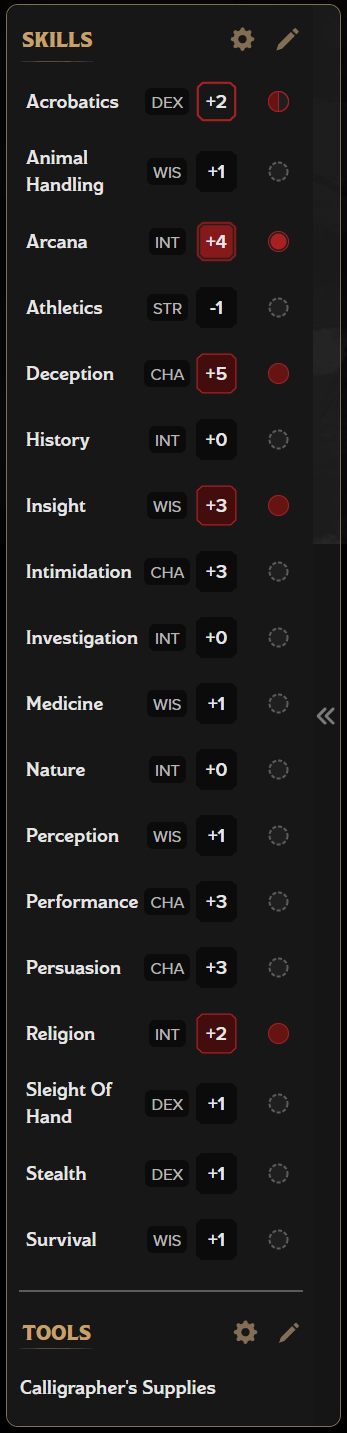 Left Column
By default, this section is expanded and contains all the skills used in a default Dungeons & Dragons 5e game. You can click anywhere on the skill name or modifier to roll a skill check with the appropriate modifiers. It also displays the ability score that controls that skill, your bonus, and your proficiency level.
Like in the Abilities Section, the circle represents your proficiency level.
The gear icon opens the edit modal to allow for bonuses, changes to the ability score used, and proficiency. The pencil icon opens in-line editing to change the ability and modifier directly. You can also use the in-line editing to add a custom skill to the bottom of the list.
If this takes up too much real estate on your sheet, you can also collapse the left column using the << button on the right side of the section. This will collapse the section so it only shows the names of the skills. You can still click a name and roll the skill with the appropriate modifier.
Below the Skills section is the Tools section. It displays any tools (including musical instruments and game sets) that your character has proficiency with. When you click the name, it will prompt you to choose an Ability to roll with.
Clicking the gear here will open the proficiency modal where you can add or remove Weapons, Armor, Tools, and Languages to your proficiency list. Most of these are displayed in the right column (see below). Only Tools have an associated roll, so only Tools are shown in this section.
 Right Column
This is the view of all your Resistances, Vulnerabilities, (Damage) Immunities, and Condition Immunities. You can add more to your sheet by clicking into the open space and starting to type, or you can use the gear settings to open the modal which will allow you to add or remove any of your defenses as well as see where those features are coming from.
This section is not only for the Conditions described in the PHB like Exhaustion or Poisoned, but also toggles for long-lasting effects and features that you may want to be able to turn on and off.
For official Conditions, like Charmed, you can simply select the Condition from the dropdown. Your sheet will automatically adjust as needed.
If you have spells, you may find them in this section as well, particularly if they last ten or more minutes or if they can affect the caster. This way the effect of the spell, such as Mage Armor, is not always "on" on your sheet just because you know the spell. When you cast one of these spells, you should add the Condition from the dropdown so that any further automations can be seen on the sheet. Once the Condition is added in the modal, it will be available in the dropdown.
You can also enter the modal to toggle conditions on or off, expand the condition to see what the rules are, or expand the condition to see what modifications it will make.
At the bottom of the modal, there is a tracker for Exhaustion Level. Clicking a number higher than its current setting will increase the level by one and clicking on a lower number will decrease it by one.
The Senses section lists your passive Investigation, Insight, and Perception scores. It also informs you of any special senses such as Darkvision or Tremorsense you may have.
The gear settings show more details and allow you to make manual adjustments with overrides and bonuses. The pencil allows you to make in-line edits to the numbers right on the sheet.
The Proficiencies & Languages Section is a listing of all the Weapons, Armor, Tools, and Languages your character has proficiency with. These can be added to, edited, or removed via the gear settings, or by typing directly into the fields.
Back to the main navigation!